 TV Remote
Roku remote app
A Roku remote on your iPhone. No subscription.
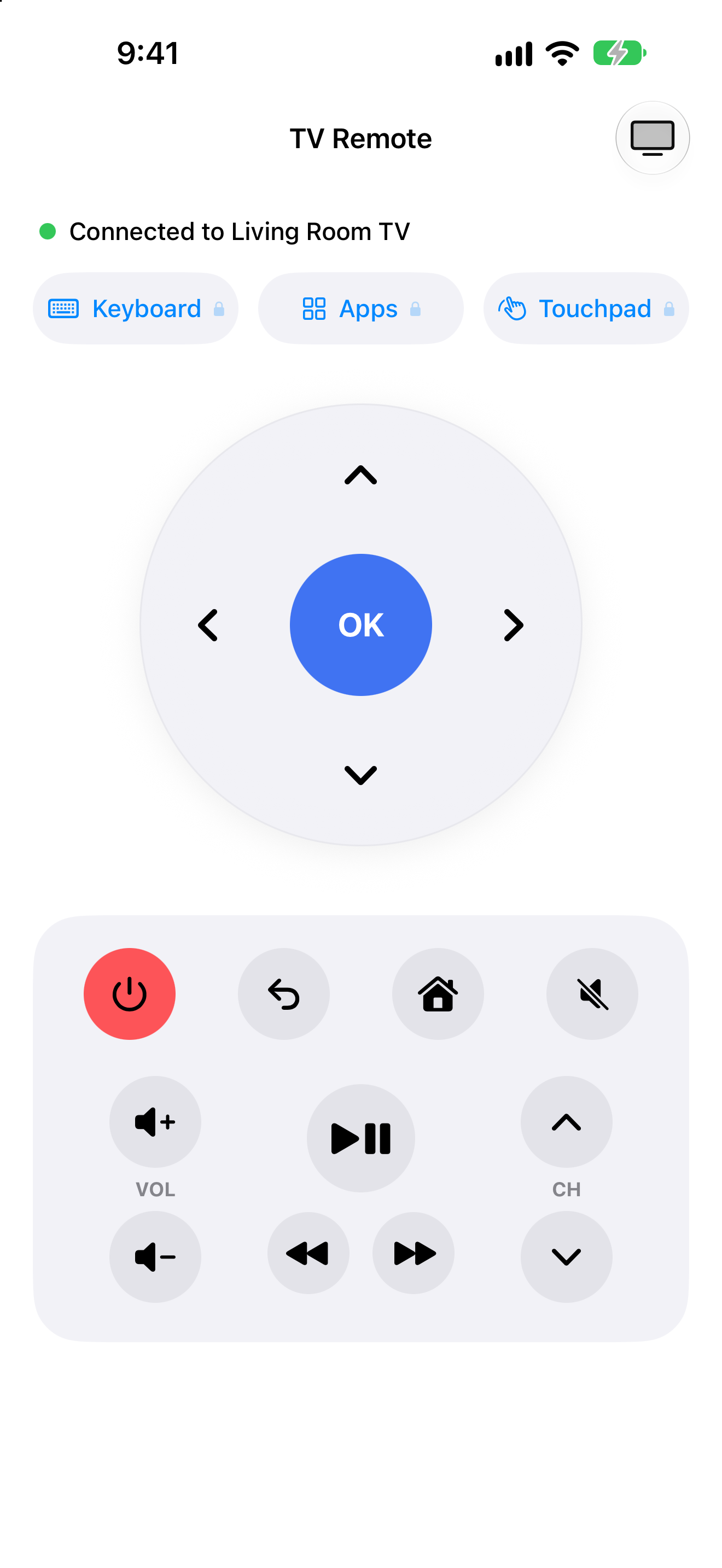
TV Remote finds your Roku TV or Roku player on your Wi-Fi and gives you the whole remote: the D-pad, Home and Back, playback, volume and your channels. No account, no ads, no weekly fee.
 Free for one TV. Pro is $9.99 once, or a 7-day free trial then $4.99/year.
Set it up in a minute
- Put your iPhone, iPad or Mac on the same Wi-Fi as your Roku.
- Open TV Remote and tap Find My TV. Your Roku shows up by name.
- Tap it. Roku needs no code or approval, so you're in control right away.
What you can do
- The D-pad, OK, Back and Home
- Play, pause, rewind and fast-forward
- Open your channels: Netflix, YouTube, Disney+ and the rest (Pro)
- Type searches with your keyboard instead of the on-screen letters (Pro)
- Volume and power. Roku TVs handle them directly; Roku sticks pass them to your TV over HDMI-CEC
- On a Mac, the arrow keys, Return and Space work as the remote
Questions
My Roku says it's blocking remote control apps
Your Roku's network access is set to Limited. Open Settings › System › Advanced system settings › Control by mobile apps › Network access and choose Default. TV Remote still handles the main buttons in Limited mode.
Power or volume doesn't work with my Roku stick
A stick reaches your TV's power and volume through HDMI-CEC. Turn on CEC in your TV's settings. Samsung calls it Anynet+, LG calls it SIMPLINK, Sony calls it Bravia Sync.
Does it work with Roku Express, Streaming Stick and Ultra?
Yes. Any Roku player or Roku TV on your Wi-Fi works, including Roku TVs from TCL, Hisense and others.
Is it really free?
Free for one TV. Pro is $9.99 once, or a 7-day free trial then $4.99/year.
Works with your other TVs too
Free for one TV. Pro is $9.99 once, or a 7-day free trial then $4.99/year.